Bybit App Tour for Beginners
You have just installed Bybit and the home screen is full of banners, charts and products you have never heard of. A beginner really needs about five places, Assets, Buy Crypto, spot trading, the security settings and the Help Centre. Learn those first and leave the rest closed until you have a reason to open it.
In this guide
The Bybit app is built for people who trade every day, and it shows. The first screen pushes futures, bots, earn products and campaigns at you, all at once. None of that is where a beginner should start, and most of it you can ignore for months.
What follows is a tour of the parts you will use, in the order you will probably need them. I have kept to what Bybit's own help centre describes, checked on 12 October 2026. Bybit changes its app often, so a button may have moved or been renamed by the time you read this. If something looks different, search the Help Centre inside the app for the feature's name rather than guessing.
Start with the right app
Bybit's account FAQ says the official app comes from the Google Play Store on Android and the Apple App Store on iPhone. Install it from there, not from a link someone sends you on WhatsApp or Telegram. Copies of exchange apps are a common trick, and a fake one can look exactly like the real thing.
One small thing that surprises people: Bybit lets you be logged in on the website and the app at the same time, but not on a third device. Logging in somewhere new signs you out of the previous one. If you keep getting logged out, check whether an old phone or laptop is still signed in.
The Assets page: where your money actually is
If you only learn one screen, make it this one. On the app's home screen, Assets sits in the bottom-right corner.
Inside, your balance is split between two accounts. The Funding Account is where deposits land and where withdrawals leave from. P2P trades also run through it. The Unified Trading Account (UTA) is where spot trading and Bybit's other trading products happen.
This split is behind most "my USDT has disappeared" panics. You buy USDT on P2P, it lands in Funding, and then the spot screen shows a zero balance because spot uses the other account. The coins are still there. You just need to move them.
To do that, tap the coin on the Assets page and choose Transfer, or tap Transfer on the Assets page itself. Pick the sending and receiving accounts, the coin and the amount, then tap Confirm. Nothing leaves Bybit and there is no network to choose. Funding Account vs Spot Account on Bybit explains the split in more detail.
The History icon in the top-right corner of the Assets page shows past deposits, withdrawals and transfers. When something looks wrong, check here before you panic.
Buy Crypto: the quick screen and P2P
This is where naira turns into crypto, and there are two doors. P2P is where you pick another user's ad and Bybit holds their coins in escrow. The quick Buy / Sell screen asks only for an amount and a way to pay.
On that quick screen, in the Bybit app on 12 October 2026, buying USDT with naira offered three kinds of payment. Bank Transfer, marked "Recommended", was a direct purchase rather than P2P, at about ₦1,373 per USDT. Below it sat P2P methods with their own prices, from OPay at ₦1,357 to Kuda Bank at ₦1,362. Last came a "Third Party Channel" for cards, Apple Pay and Google Pay, the dearest at ₦1,379.
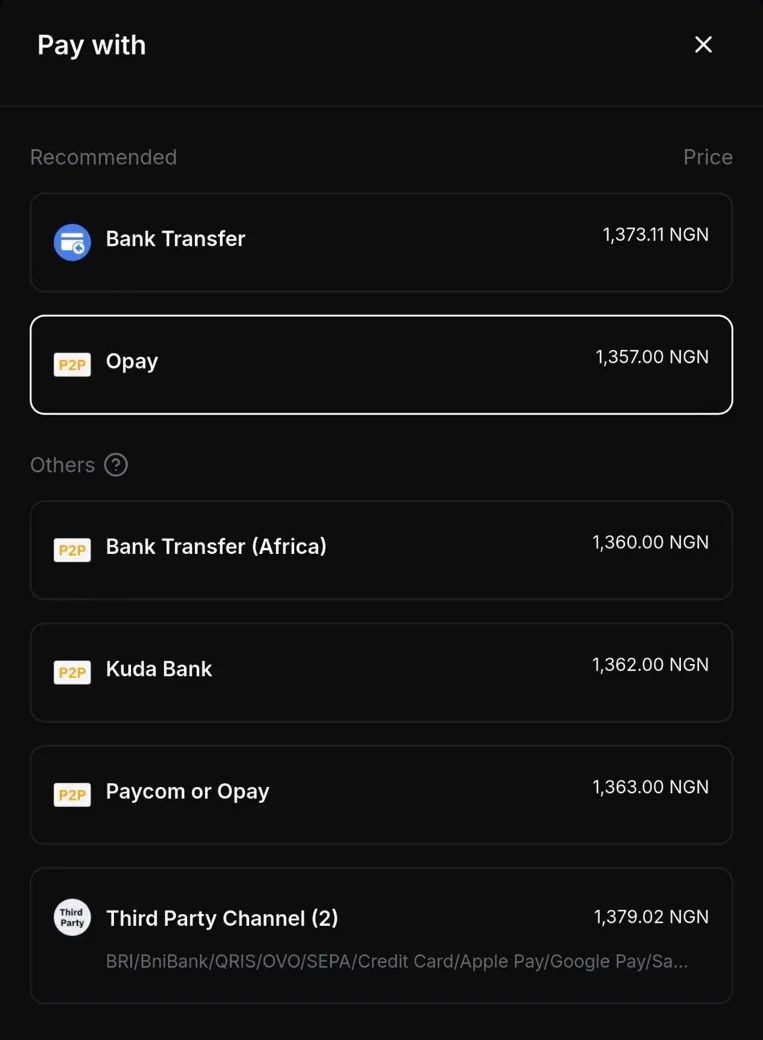 Payment options for buying USDT with naira in the Bybit app, 12 October 2026.
Two details on the bank transfer confirmation are easy to miss. The USDT goes to the Unified Trading Account, not Funding. And an "Earn 6.92% APR" switch was on by default, which puts the USDT into a Bybit Earn product. Turn it off before you confirm if you only want to hold the coins. The order cannot be refunded unless it fails.
For most Nigerian beginners, P2P is still the main route, because the better ads were about 1% cheaper. It has its own screens, timers and dispute button, and it deserves a careful first read. Bybit P2P in Naira walks through it with real ads.
Spot trading, and what to leave alone
Spot trading is where you swap one coin for another, such as USDT for Bitcoin. Bybit's own beginner article describes spot as buying the actual asset, with immediate ownership and no leverage. You can only spend what you have.
That is the one to learn. The others on the trading menu are different animals:
- Spot margin lets you borrow to trade bigger, with a risk of liquidation.
- Futures and perpetual contracts do not give you the coin at all. They are bets on price with leverage, and positions can be wiped out.
- Copy trading and trading bots hand decisions to someone else or to a program. Bybit itself warns that a master trader's past results do not guarantee anything.
None of these belongs in your first months. Bybit's fee table on 12 October 2026 showed a 0.1% spot fee for regular (VIP 0) users on crypto pairs, which is the main cost you will see on spot.
Your profile and security settings
Tap the profile icon at the top left of the home screen. From here you reach Settings, and the security options that matter far more than any trading feature.
Bybit's security article recommends several settings, and I would turn them on before putting in any money. Google Authenticator 2FA comes first, so a stolen password alone is not enough; How to Set Up 2FA on Bybit has the screens. A fund password, separate from your login password, is then needed for withdrawals. An anti-phishing code appears in every real email and text message from Bybit, so a message without it is suspect.
Under Security you will also find Trusted Devices, where you can remove any phone or computer you do not recognise, and a new address withdrawal lock, which stops a newly added withdrawal address from being used for 24 hours. That lock is dull until the day someone gets into your account and tries to send your coins out. The same settings area also has notification preferences, if the market alerts get too noisy.
The Help Centre and Submit Case
Bybit's support guide says to go to your Profile, then Help Center, then Submit Case when you need a person to look at something. You will be asked for your UID, a contact email, a description and any screenshots. Bybit says replies come within 3 to 7 working days, and that sending the same request twice slows things down.
The Help Centre also has a Support Hub that lists your open cases and their status. Use it instead of waiting for emails.
One thing the Help Centre will never do is message you first on Telegram or WhatsApp. Anyone who does is not Bybit, however official their profile picture looks.
A sensible first week
Open the app, set up security, and do nothing else on day one. Then buy a small amount of USDT on P2P, find it in the Funding Account, transfer it, and make one small spot trade. Transfer it back and look at the history. That one loop teaches you more about the app than any tour.
If you have not signed up yet, you can open a Bybit account here (affiliate link) and check the new-user rewards on the sign-up page. The full route from sign-up to your first Bitcoin is in How to Use Bybit in Nigeria.
Join through our link: get at least 20 USDT in sign-up rewards and 20% off trading fees.
Open a Bybit account and see new-user rewards(affiliate link)Sources
- Bybit Help Centre: Everything You Need to Know to Get Started on Bybit
- Bybit Help Centre: How to Transfer Assets on Bybit
- Bybit Help Centre: A Complete Guide to Bybit's Funding Account
- Bybit Help Centre: FAQ, Account Settings
- Bybit Help Centre: How to Enhance the Security of Your Account
- Bybit Help Centre: How to Submit a Support Ticket and Track Its Status
- Bybit Help Centre: Differences Between Spot, Spot Margin and Futures Trading
- Bybit Help Centre: Trading Fee Structure
- Bybit app (Android), Buy/Sell screen viewed 12 October 2026